
Migrate Your IBM DB2 Data to MongoDB – Effortlessly!
This clear guide demonstrates how to transfer your data from IBM DB2 to MongoDB efficiently using ESF Database Migration Toolkit.- Execute a step-by-step, reliable migration process.
- Simplify complex data transfers with an intuitive tool.
- Save significant time and effort with automation.
- Modernize your data infrastructure with ease.
Prerequisite:
Software Required:
ESF Database Migration Toolkit »System Supported:
- Windows 7 or higher.
- IBM DB2 9.x or higher.
- MongoDB 1.0 or higher.
Step by Step Wizard:
-
Connect to IBM DB2
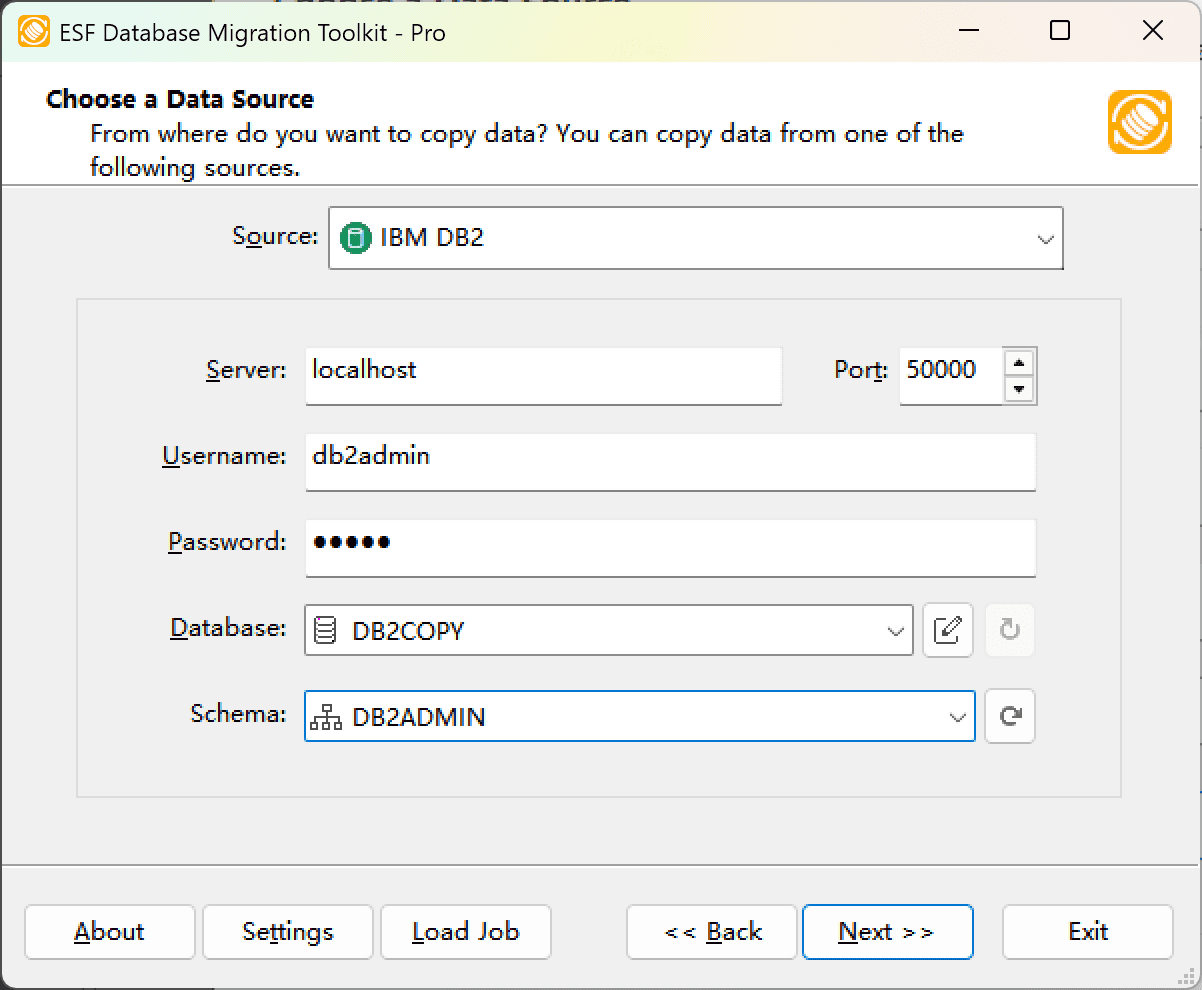
Fig. 1: IBM DB2 data source configuration - In the "Choose a Data Source" dialog:
- Select "IBM DB2"
- Specify server connection details:
- Server name:
localhost(default) - Port:
50000(default)
- Server name:
- Enter authentication credentials:
- Username:
db2admin(default) - Password
- Username:
- In the Database combobox:
- Enter the source DB2 database name
- Schema selection procedure:
- Click Refresh Schema to load available schemas
- Select desired schema from the list
- In the "Choose a Data Source" dialog:
-
Configure MongoDB Data Source
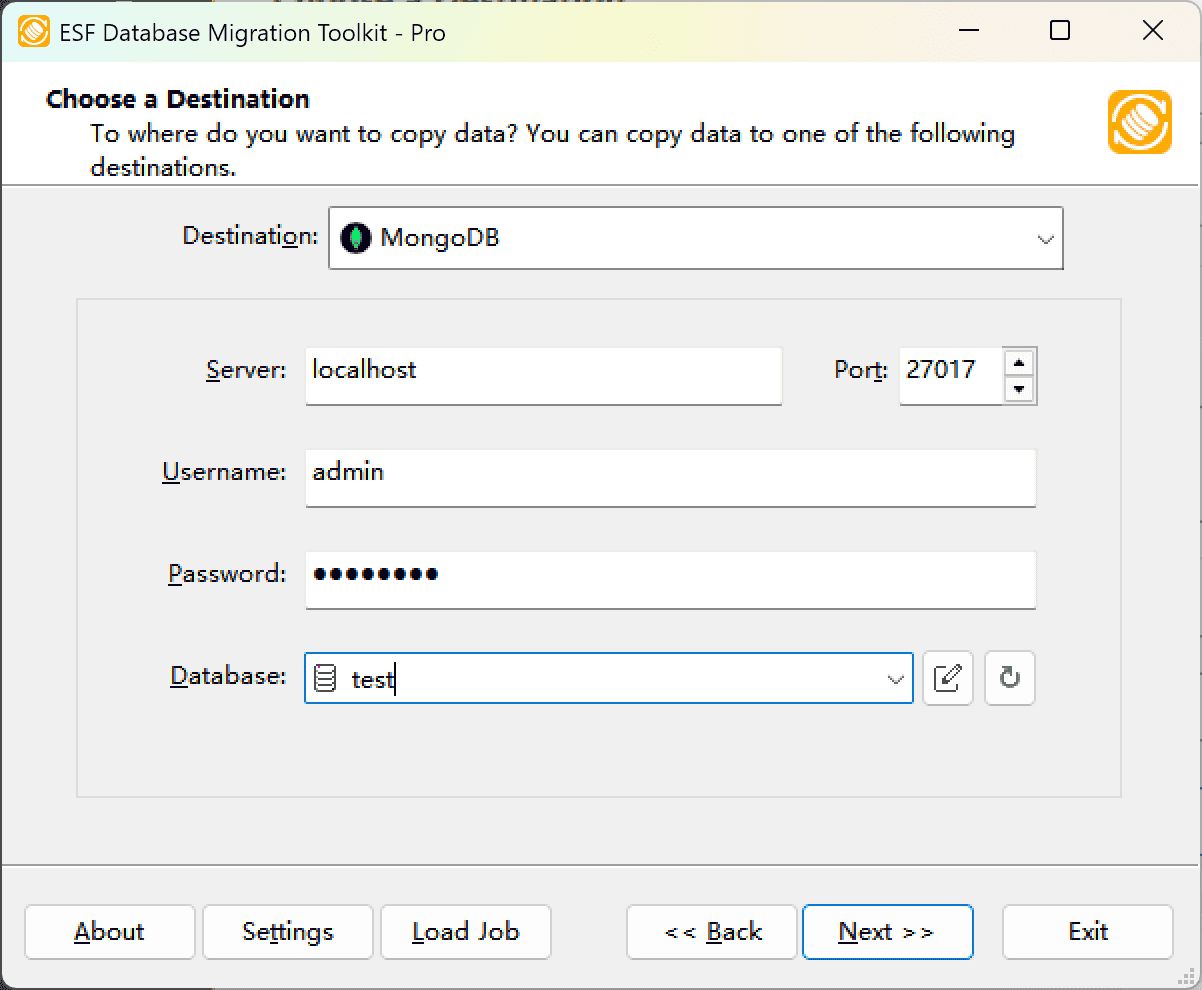
Fig. 2: MongoDB2 data source configuration - In the "Choose a Destination" dialog:
- Select "MongoDB"
- Enter server connection details:
- Server name:
localhost(default) - Port:
27017(default)
- Server name:
- Provide authentication credentials:
- Username:
admin(default) - Password
- Username:
- In the Database field:
- Enter target MongoDB database name
- In the "Choose a Destination" dialog:
-
In "Select Source Table(s) & View(s)" Dialog
-
Select migration objects: Choose tables or views to include in the migration.
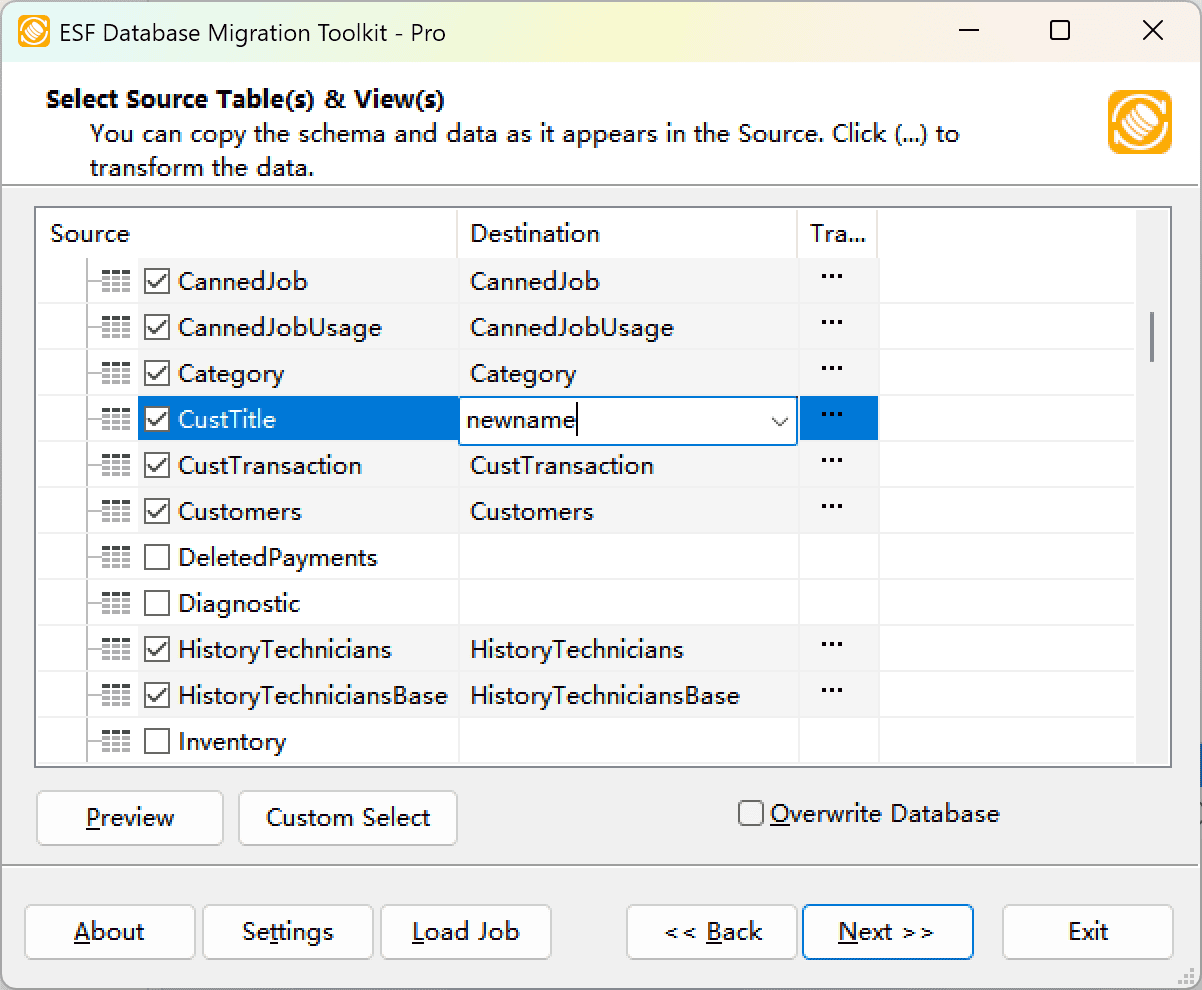
Fig. 3: Select tables and views -
Modify table structure: Click the ellipsis (...) button to access table options and schema adjustments.
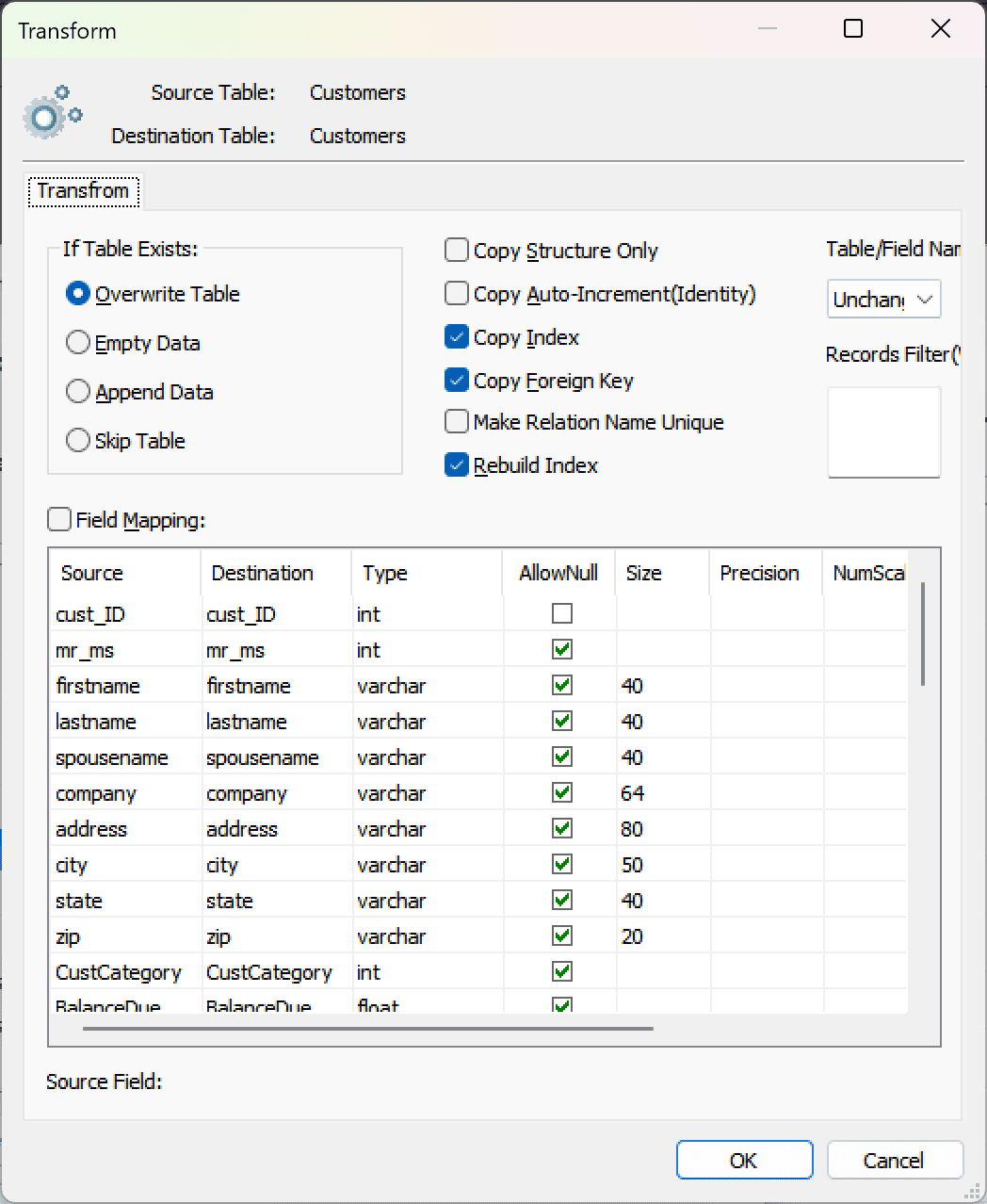
Fig. 4: Do transform -
Configure field mapping: In the Field Mapping options:
- Customize destination fields (name, data type, default value, comments)
- Select data transfer method:
- Overwrite Table (replace existing data)
- Empty Data (truncate before insert)
- Append Data (add to existing data)
- Skip Table (exclude from transfer)
- Apply data filters before transfer
-
Select migration objects: Choose tables or views to include in the migration.
-
Execution Dialog
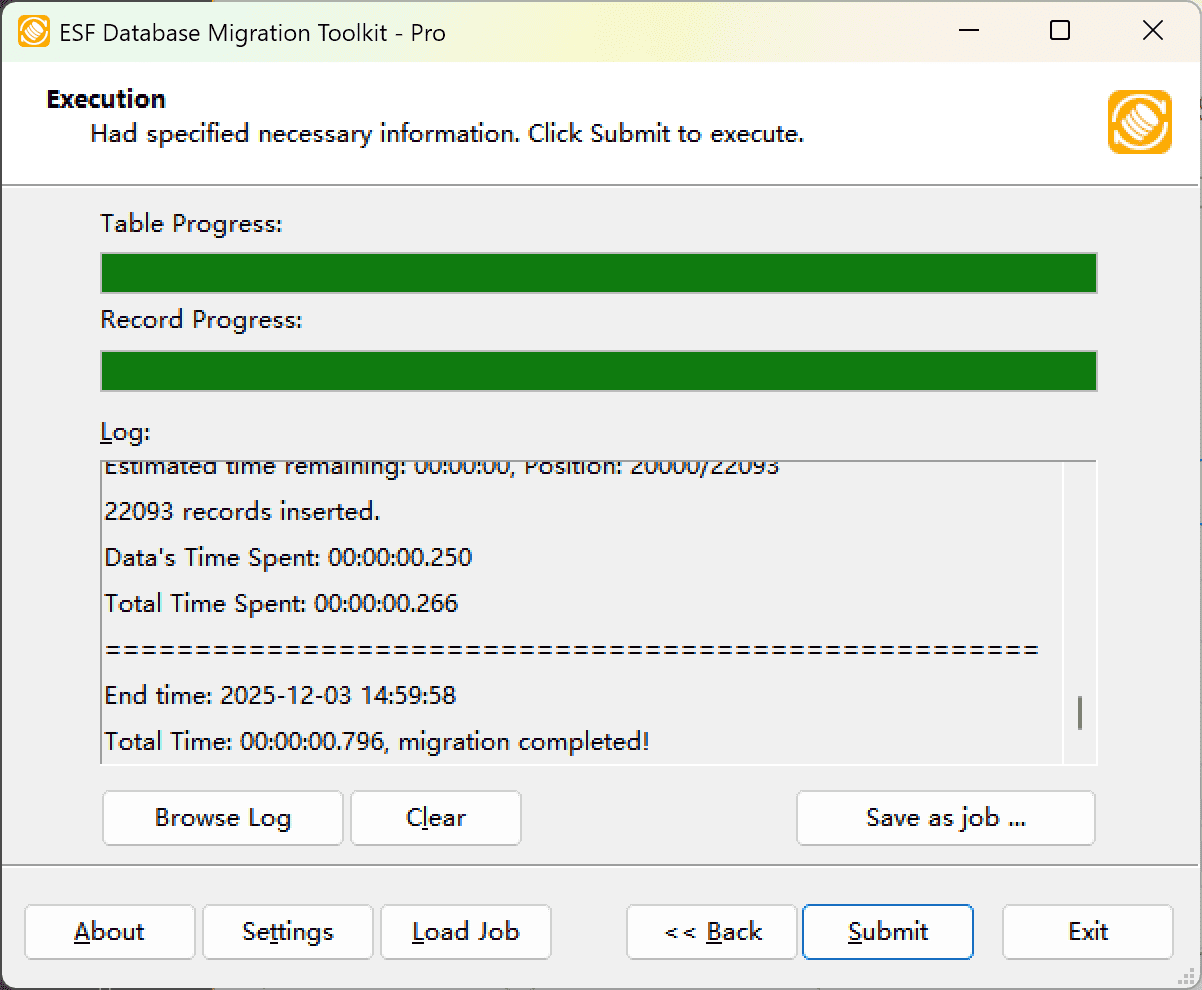
Fig. 5: Execute migration - Start migration: Click "Submit" to initiate automated data transfer from IBM DB2 to MongoDB.
- Monitor progress: Click "Browse Log" for real-time migration tracking, including issue resolution details.
-
Save configuration: Click "Save as job" to store settings for:
- Quick reloads of migration jobs
- Command-line execution (use:
dmtc.exe --helpfor parameter options)
-
Migration Completed
Congratulations! Your data migration from IBM DB2 to MongoDB has finished successfully. This toolkit generates a comprehensive report for verifying migration accuracy. You can monitor progress as the automated process runs efficiently. For any questions or feedback, contact us – our team is ready to assist.