
Convert to Excel Spreadsheet (.xls, .xlsx)
Microsoft Excel is one of the most widely used spreadsheet programs in the world. This guide explains how to export data from any supported database format — including SQL Server, Oracle, MySQL, PostgreSQL, Firebird, and more — to Microsoft Excel (.xls / .xlsx) using ESF Database Migration Toolkit. You can also import Excel data into other databases using the same tool.
Why Convert Database Data to Excel?
- Data Analysis — Perform in-depth analysis using Excel's pivot tables, charts, and formulas
- Reporting — Generate formatted reports for stakeholders who prefer spreadsheet formats
- Data Sharing — Share database extracts with non-technical team members in a familiar format
- Backup & Archiving — Create portable snapshots of your database tables for offline storage
Prerequisites
- ESF Database Migration Toolkit installed — Download the latest version »
- Source database access — Valid connection credentials for your source database
- For .xlsx support: Install Microsoft Access Database Engine (optional)
📥 Don't have ESF Database Migration Toolkit yet? Download the free trial and start converting in minutes!
Step-by-Step Conversion Guide
Step 1: Choose Your Source Database
Launch ESF Database Migration Toolkit and click "Next". In the "Choose a Data Source" dialog, select your source database type (e.g., Oracle, MySQL, SQL Server, PostgreSQL, Firebird, etc.). Enter the correct login information — server, port, username, and password. Click "Refresh" to enumerate all available databases, or press "Browse" to select a source file. Then click "Next" to continue.

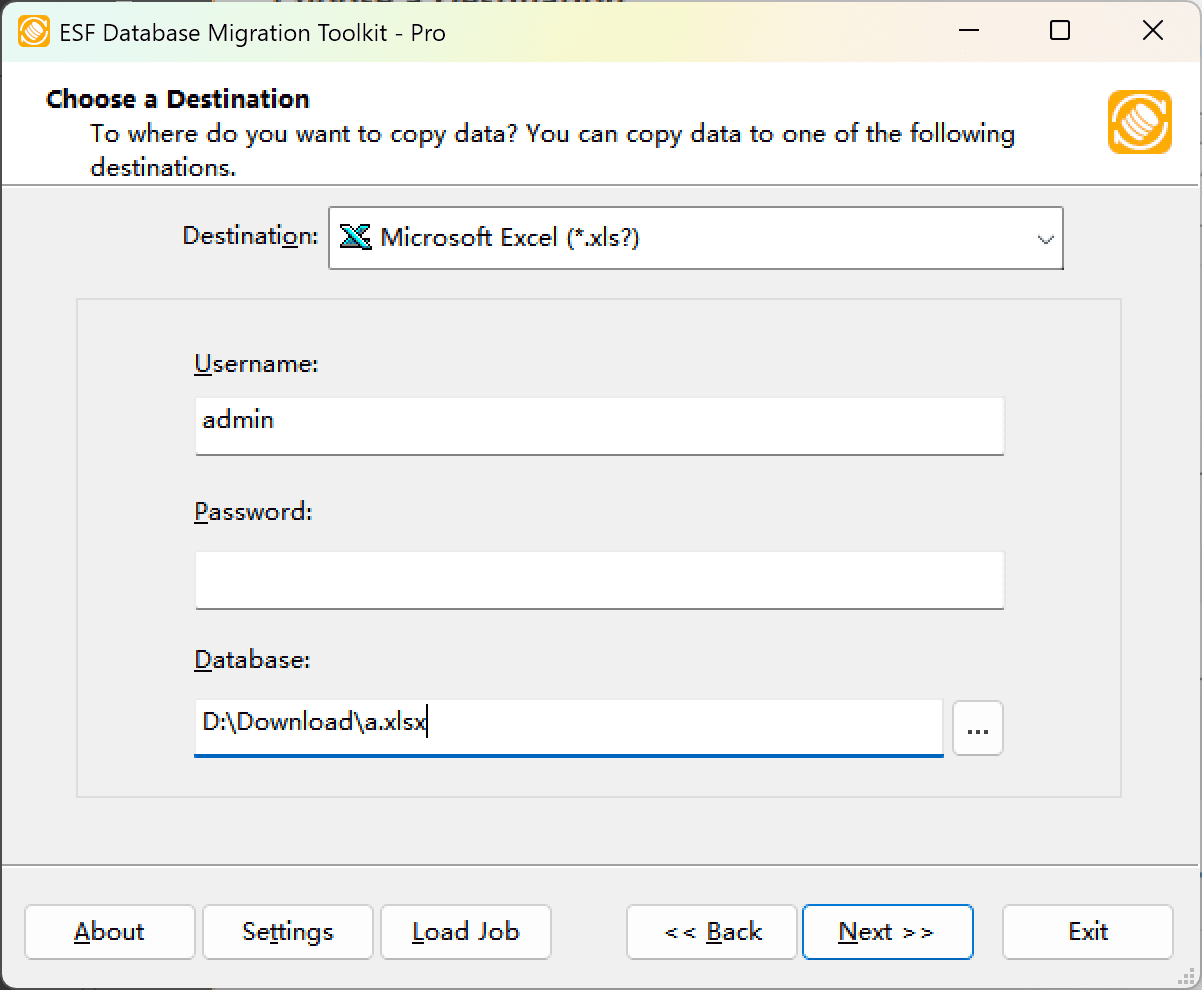
Step 2: Choose Excel as Destination
In the "Choose a Destination" dialog, select "Microsoft Excel (*.xls?)". Click the "Browse" button to specify the destination Excel file path. Click "Next" to continue.
Step 3: Select Tables & Configure Mapping
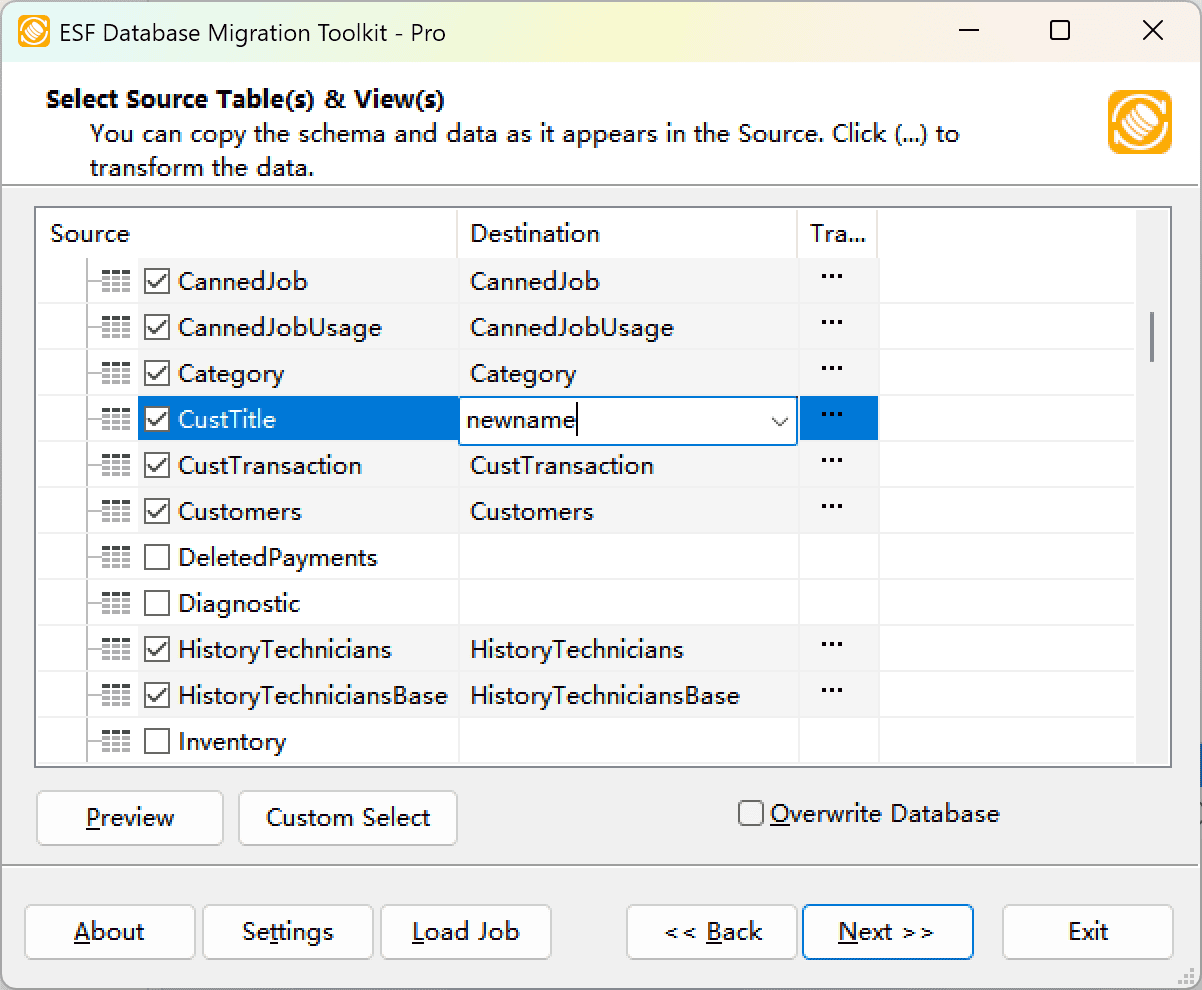
In the "Select Source Table(s) & View(s)" dialog, you'll see all available tables and views from your source database. Note: Some sheet names may have a '$' symbol (these contain the same data as original sheets). You can:
- Preview source table data using the "Preview" button
- Rename destination tables in the "Destination" column
- Set Overwrite option (checking this will remove the existing Excel file and all data!)
- Click the "..." button in the "Transform" column for advanced options
Step 4: Configure Transform Options
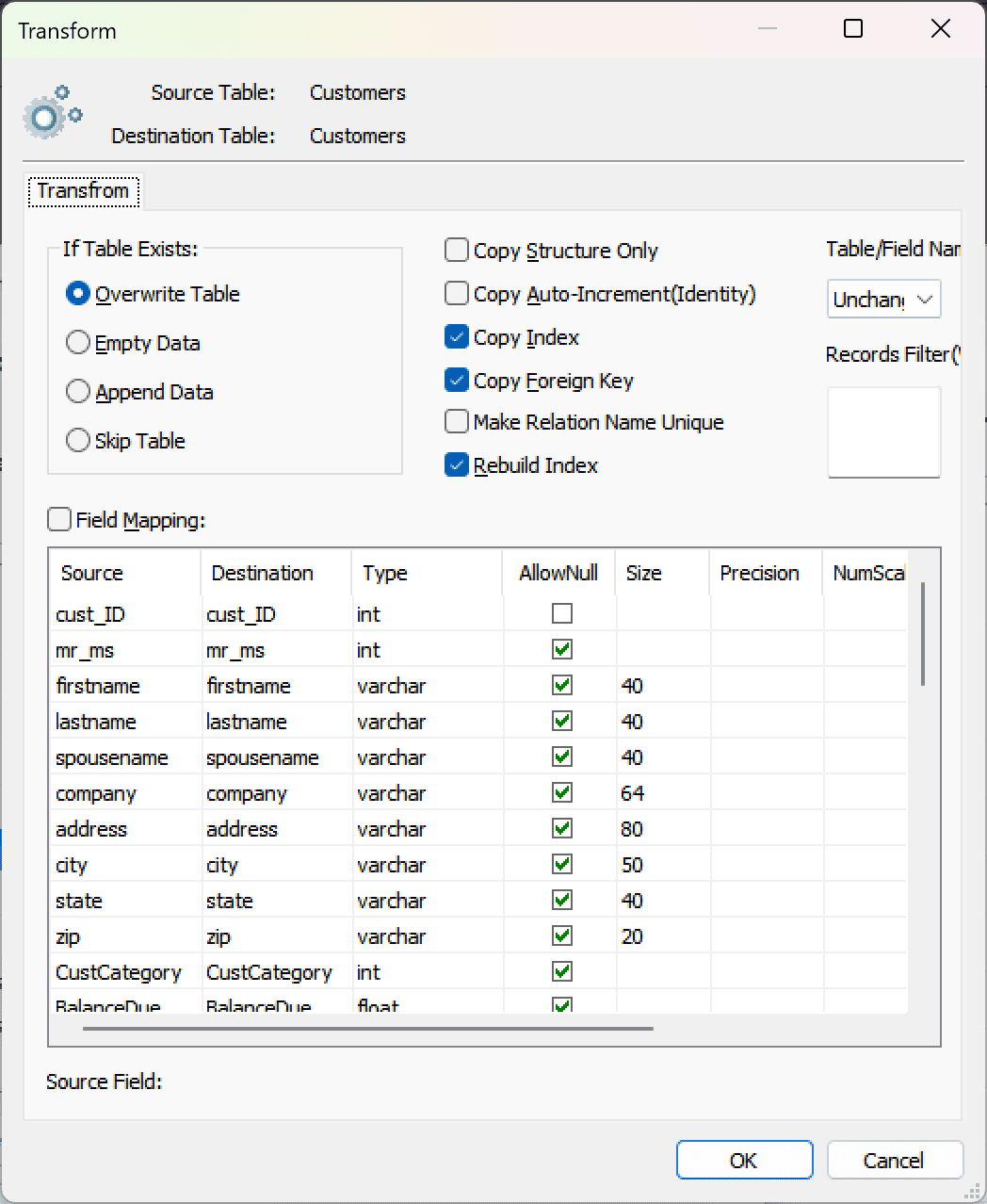
In the "Transform" dialog, you can customize the conversion:
- Copy Structure Only — Export only the table structure without data
- Field Mapping — Change target Excel column names and data types
- Data Filter — Apply a WHERE condition (e.g.,
id < 100) to export only specific records. Leave empty or1=1to export all data
Step 5: Execute the Conversion
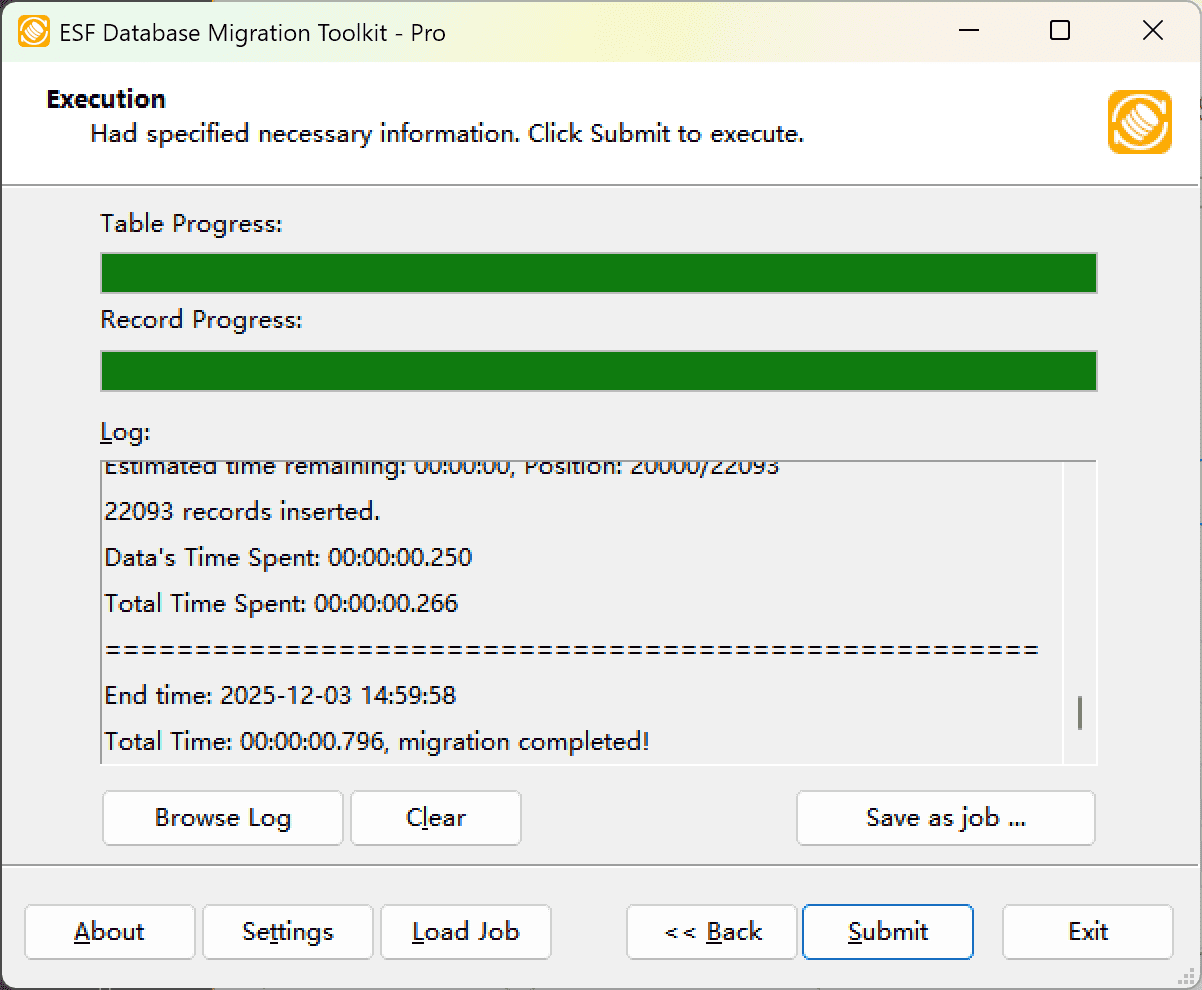
Click "Submit" to start the conversion process. The source table structure will be converted to Excel's first row (headers), and source table records will populate starting from row 2.
Note: Due to Excel limitations, binary data and long text fields (longer than 256 characters) will not be converted to the spreadsheet.
Importing Excel into Other Databases
The same tool can also import Excel data into other database formats. Simply select "Microsoft Excel" as the source in Step 1, and choose your target database in Step 2. Popular imports include: Excel to Oracle, Excel to SQL Server, and Excel to MySQL.
Frequently Asked Questions
Does the conversion modify my source database?
No. ESF Database Migration Toolkit only reads from your source database. Your original data remains untouched.
Can I convert only specific columns or rows?
Yes. Use the Field Map to select specific columns and the Records Filter (WHERE clause) to export only matching rows.
What Excel versions are supported?
The tool supports both .xls (Excel 97-2003) and .xlsx (Excel 2007+) formats. For .xlsx support, the Microsoft Access Database Engine may be required.
Can I schedule regular Excel exports?
Yes. ESF Database Migration Toolkit supports command-line execution, allowing you to automate regular Excel exports using Windows Task Scheduler.
Conclusion
Converting database data to Excel spreadsheets has never been easier. With ESF Database Migration Toolkit, you can export data from any supported database to Excel in just a few clicks — no scripting or technical expertise required.
If you have any questions or suggestions, please contact us. Thank you for your time!