Migrating to Oracle 8i, 9i, 10g, 11g, 12c from Other Database Formats
By Martin Williams |
Published:
| Updated:
Oracle is one of the world's most popular and powerful DBMS (Database Management Systems). This comprehensive guide explains how to quickly migrate data from other database formats — including SQL Server, MySQL, PostgreSQL, IBM DB2, MS Access, Firebird, Excel, and more — to Oracle databases (8i through 12c) using ESF Database Migration Toolkit.
Why Migrate to Oracle?
Enterprise-Grade Performance — Handle massive data volumes with Oracle's advanced optimization and indexing
High Availability & Security — Benefit from Oracle's robust security features and proven reliability
Scalability — Scale from small applications to enterprise-level systems with ease
Rich Feature Set — Leverage Oracle's advanced analytics, partitioning, and replication capabilities
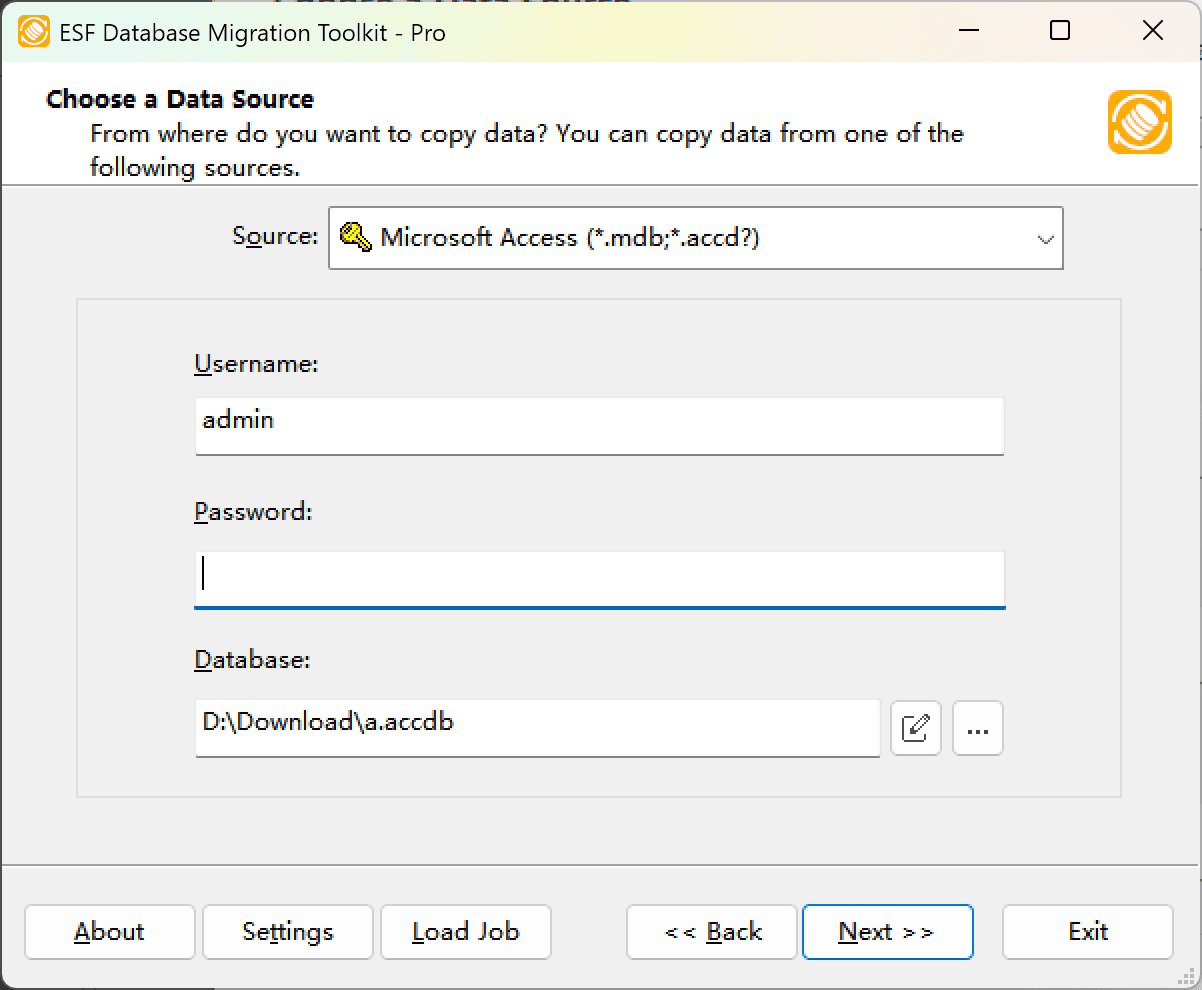
Launch ESF Database Migration Toolkit and press "Next". In the "Choose a Data Source" dialog, select your source database type (e.g., MySQL, SQL Server, IBM DB2, PostgreSQL, MS Access, Firebird, etc.). Enter the correct connection details:
For server-based databases (MySQL, PostgreSQL, SQL Server, DB2, etc.): Enter server, port, username, and password. Click "Refresh" to list available databases.
For file-based databases (MS Access, Excel, FoxPro, etc.): Click "Browse" to select the source file or folder.
Fig. 1: Configure your source database (shown: MySQL)Fig. 2: File-based source selection (shown: MS Access)
Click "Next" to continue.
Step 2: Configure Oracle as Destination
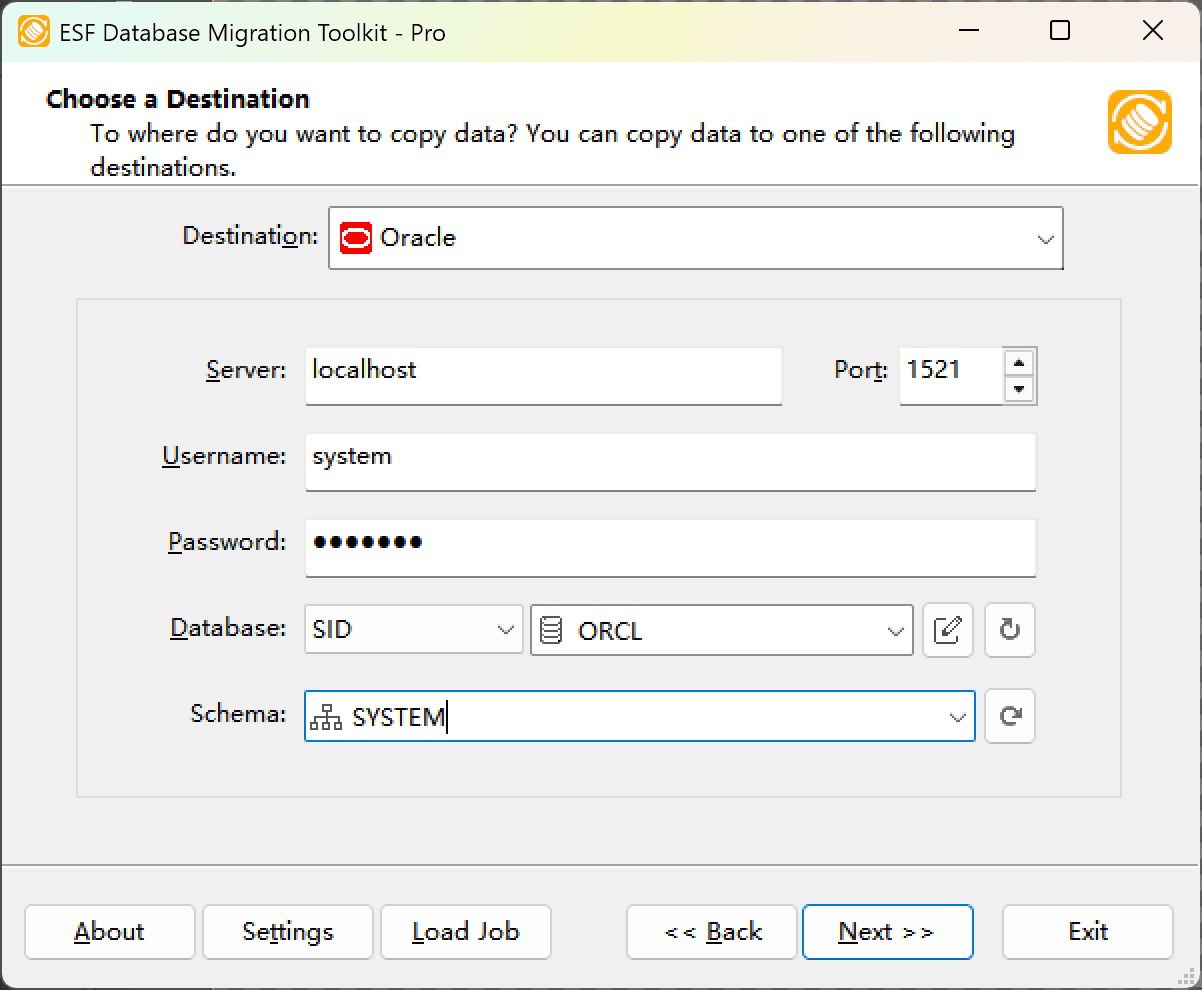
In the "Choose a Destination" dialog, select "Oracle Database". Enter the following connection information:
Server — Hostname or IP address of the Oracle server
Port — Typically 1521
Username — e.g., SYSTEM
Password — Associated password
Connect Method — Choose SID, Service_Name, or TNS (depends on Oracle configuration in tnsnames.ora)
Database — Enter the Oracle instance name (SID) or Service Name
Schema — Enter a new schema name or select an existing one
Fig. 3: Configure Oracle as your destination database
Step 3: Select Tables & Configure Mapping
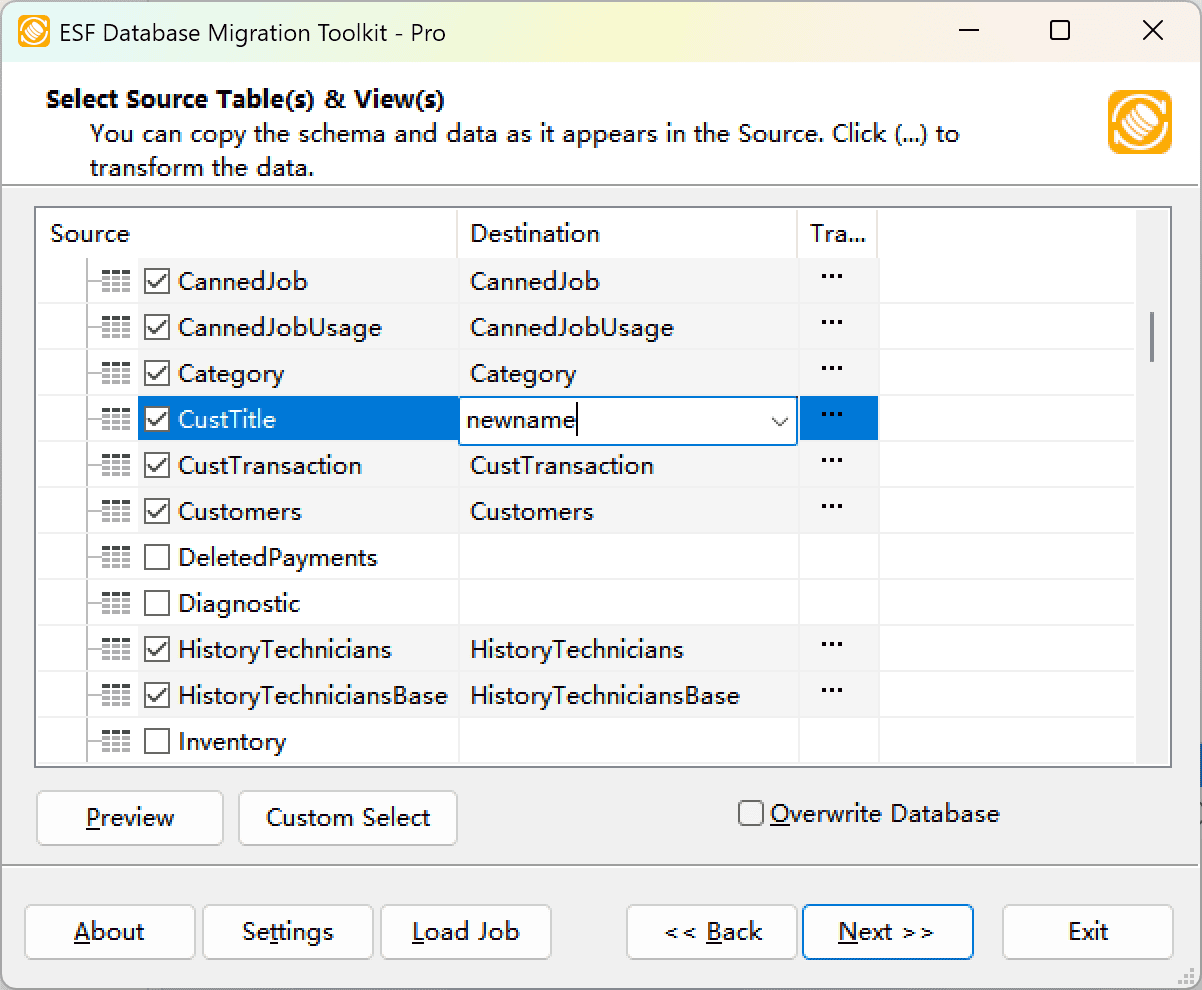
In the "Select Source Table(s) & View(s)" dialog, you'll see all available tables and views from your source database:
Preview source table data using the "Preview" button
Rename destination tables in the "Destination" column
Overwrite option (checking this will remove the destination database and all data!)
Click the "..." button in the "Transform" column for advanced options
Fig. 4: Select tables and configure migration settings
Step 4: Configure Transform Options
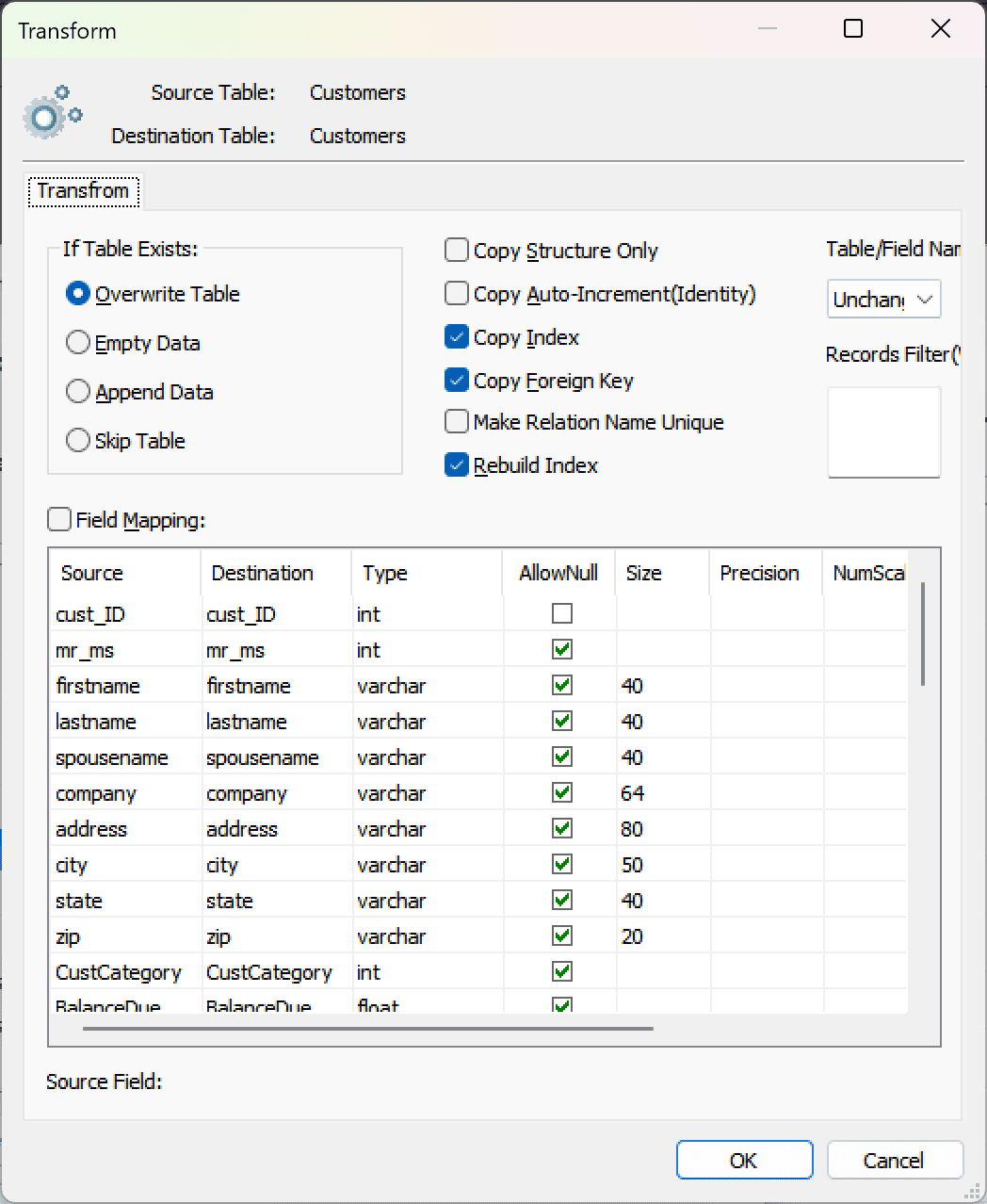
In the "Transform" dialog, customize your Oracle migration:
Copy Structure Only — Migrate only the table structure without data
Field Mapping — Change target Oracle field names, data types, and default values
Data Filter — Apply a WHERE condition (e.g., id < 100) to migrate only specific records. Leave empty or 1=1 to migrate all data
Fig. 5: Customize field mapping, data types, and filters
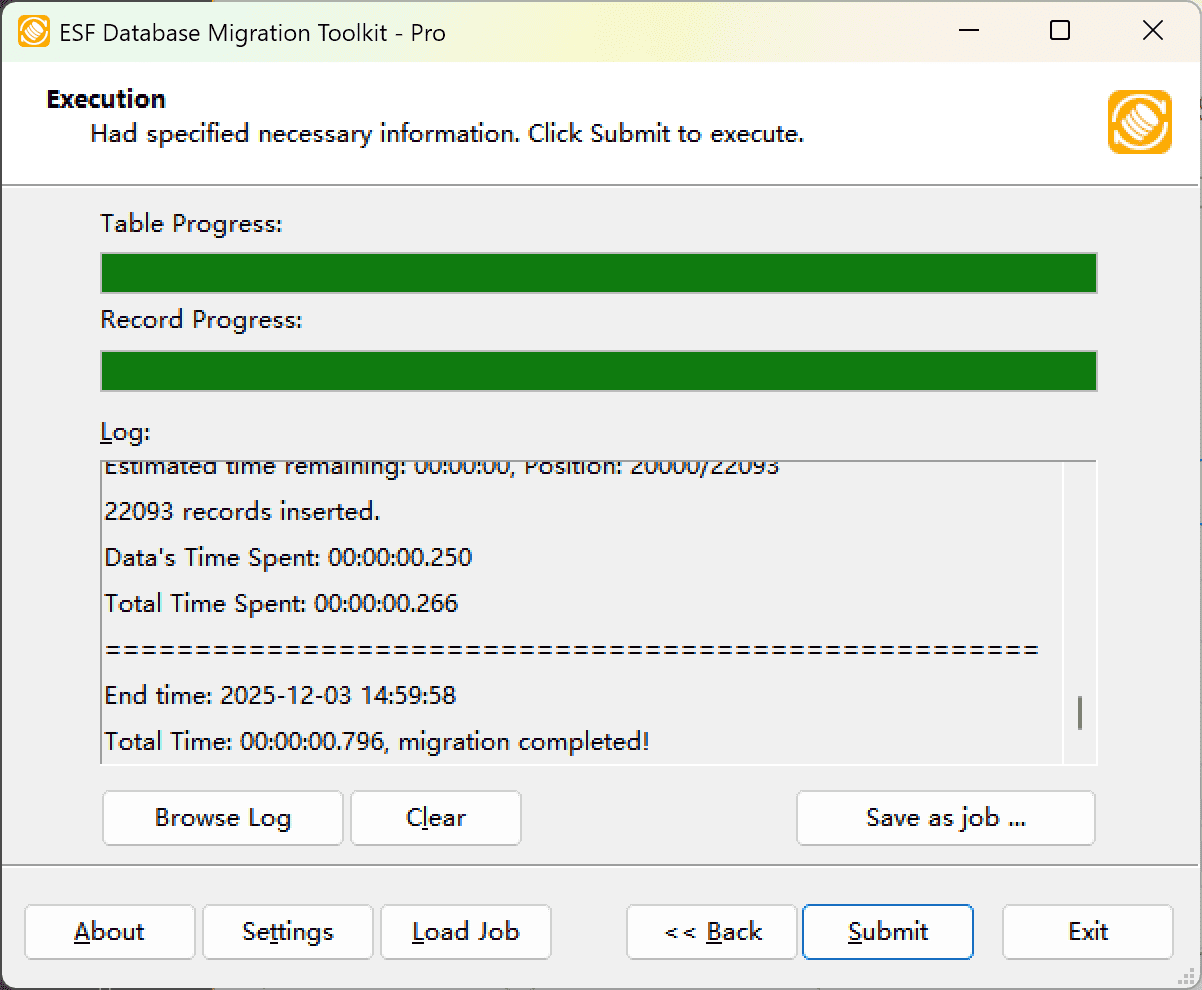
Step 5: Execute the Migration
In the "Execution" page, click "Submit" to start the Oracle migration. Monitor the real-time progress through the detailed logs.
Fig. 6: Monitor the migration progress
Frequently Asked Questions
Does the migration preserve my source data?
Yes. ESF Database Migration Toolkit only reads from your source database. Your original data remains completely untouched.
Can I migrate schema objects like indexes and constraints?
Yes. The tool automates migration of table structures, indexes, primary keys, foreign keys, and default values to Oracle. Schema migration is supported between Oracle, SQL Server 2005+, and PostgreSQL.
How long does an Oracle migration take?
Migration speed depends on data volume, network connectivity, and database performance. Thanks to bulk-insert technology, large datasets with millions of records can be migrated efficiently.
What Oracle versions are supported?
ESF Database Migration Toolkit supports Oracle 8i through 12c, including Oracle 9i, 10g, 11g, and Oracle 12c. Check the features page for the latest version compatibility.
Can I migrate data from Oracle to other databases?
Yes. The tool supports bi-directional migration. You can also use it to migrate from Oracle to SQL Server, MySQL, PostgreSQL, and other databases.