
How to Migrate MS Access(*.mdb; *.accdb) to PostgreSQL – Step by Step Guide
This comprehensive guide walks you through every step of migrating your data from MS Access to PostgreSQL using ESF Database Migration Toolkit. Whether you're upgrading your infrastructure, moving to the cloud, or consolidating database systems, this tutorial covers everything from prerequisites to verification — complete with screenshots and expert tips.
Why Migrate from MS Access to PostgreSQL?
Organizations choose to migrate between database platforms for a variety of strategic, operational, and technical reasons. Below are the most common drivers for moving from MS Access to PostgreSQL:
- Performance & Scalability — Move to a database platform that better suits your growing data needs, with improved query performance and handling of large datasets.
- Cost Optimization — Reduce licensing and operational costs by switching to a more efficient or open-source database system.
- Modern Infrastructure — Upgrade from legacy database systems to modern, cloud-ready platforms with better security and support.
- Simplified Management — Consolidate multiple database types into a unified environment, reducing administrative overhead.
- Feature Requirements — Leverage advanced features like native JSON support, better indexing, or improved replication capabilities.
With ESF Database Migration Toolkit, the entire migration process is streamlined through an intuitive wizard interface — no manual scripting or complex configurations required.
Prerequisites
Software Required:
Download ESF Database Migration Toolkit »
System Requirements:
- Windows 7 or higher (Windows 10/11 recommended)
- MS Access 97 or higher — installed and accessible
- PostgreSQL 7.x or higher — installed and accessible
- Appropriate database connection credentials (server, port, username, password)
Ready to get started? Download ESF Database Migration Toolkit free trial today.
Step-by-Step Migration Guide
Follow these simple steps to migrate your data from MS Access to PostgreSQL using ESF Database Migration Toolkit:
-
Step 1: Configure MS Access as Source
Launch ESF Database Migration Toolkit and click "Next" to open the "Choose a Data Source" dialog. Select MS Access and enter your connection details.
Configure Microsoft Access Data Source
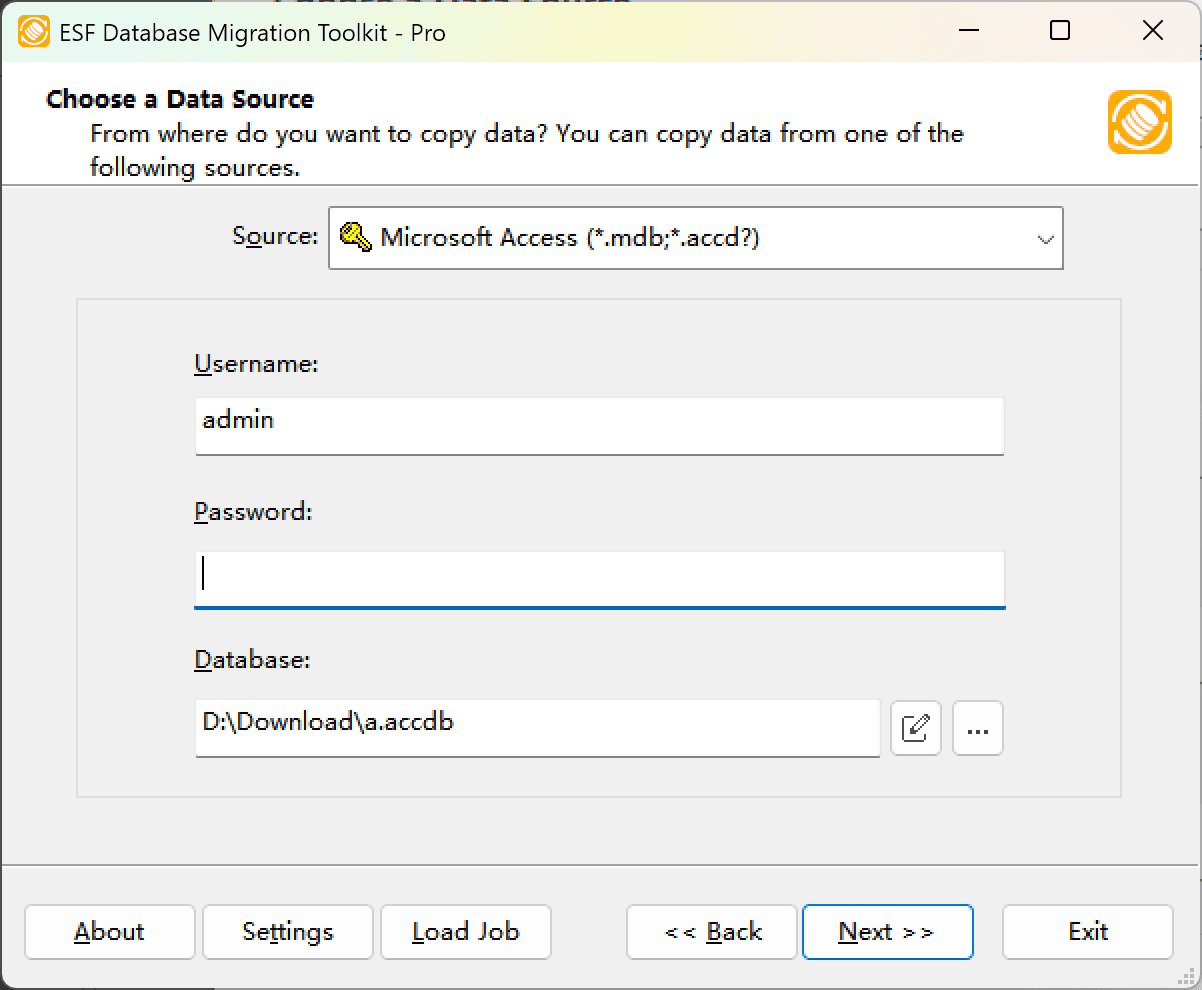
Fig. 1: Microsoft Access data source configuration - In the "Choose a Data Source" dialog:
- Select "Microsoft Access (*.mdb;*.accdb)"
- Browse for database file:
- Click the "..." button
- Select your .mdb or .accdb file
- Configure workgroup security (for system databases):
- Click the lock icon
- Set workgroup settings in the security dialog
- In the "Choose a Data Source" dialog:
-
Step 2: Configure PostgreSQL as Destination
In the "Choose a Destination" dialog, select PostgreSQL and configure the connection settings for your target database.
Configure PostgreSQL Destination
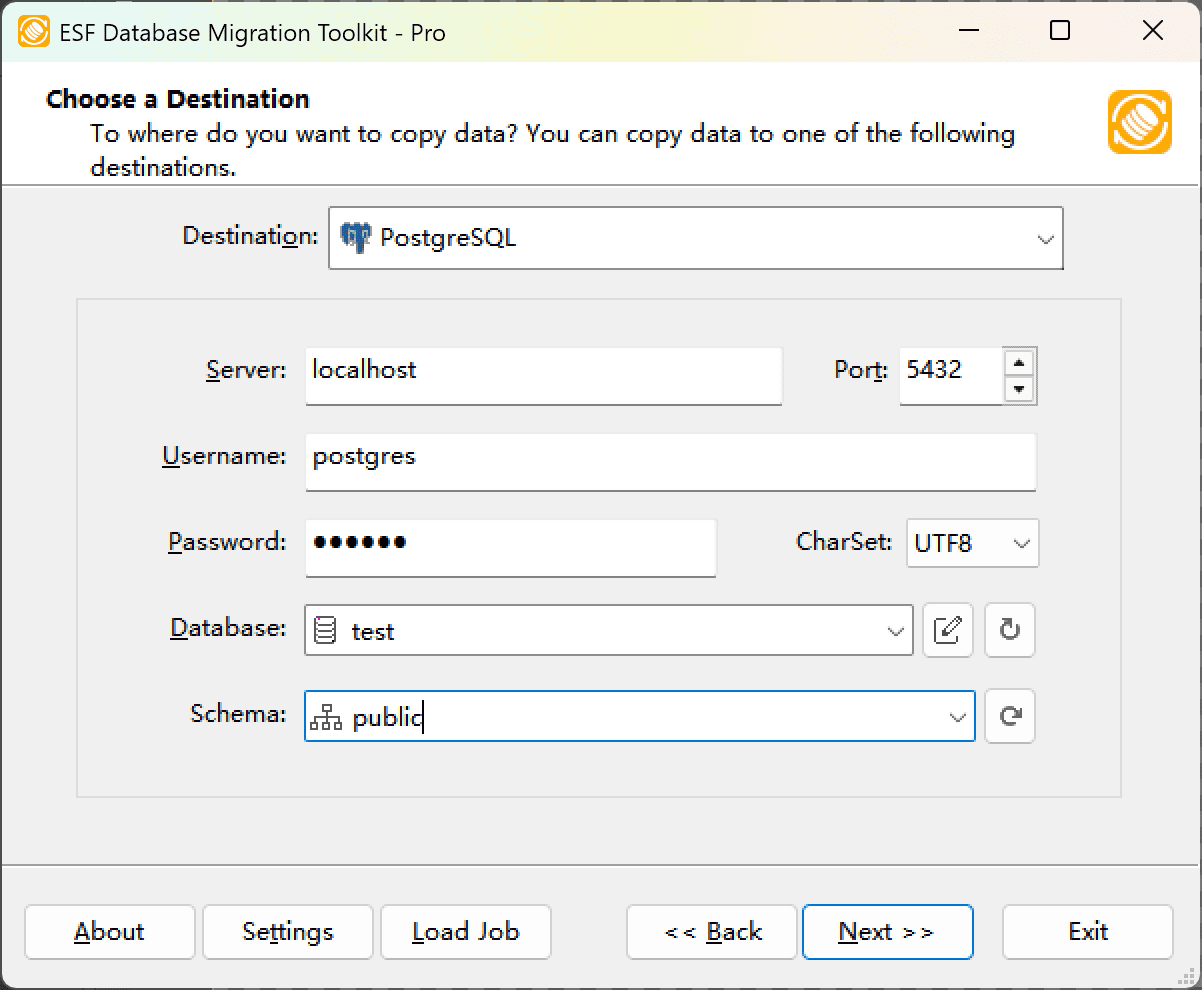
Fig. 2: PostgreSQL destination configuration - In the "Choose a Destination" dialog:
- Select "PostgreSQL"
- Enter server connection details:
- Server name:
localhost(default) - Port:
5432(default)
- Server name:
- Provide authentication credentials:
- Username:
postgres(default) - Associated password
- Username:
- Configure character encoding:
- Select database character set (default:
UTF8) - Required for non-ASCII characters (e.g., German, French, Japanese)
- Select database character set (default:
- Database selection/creation:
- Select existing database or enter new database name
- Click the Refresh button to list available databases
- New databases are automatically created during migration
- Schema configuration:
- Enter or select target schema name (default:
public) - Click the Refresh Schema button to list available schemas
- Enter or select target schema name (default:
- In the "Choose a Destination" dialog:
-
Step 3: Select Tables and Configure Mapping
Choose the specific tables and views you want to migrate, then customize the field mappings between source and destination.
In "Select Source Table(s) & View(s)" Dialog
-
Select migration objects: Choose tables or views to include in the migration.
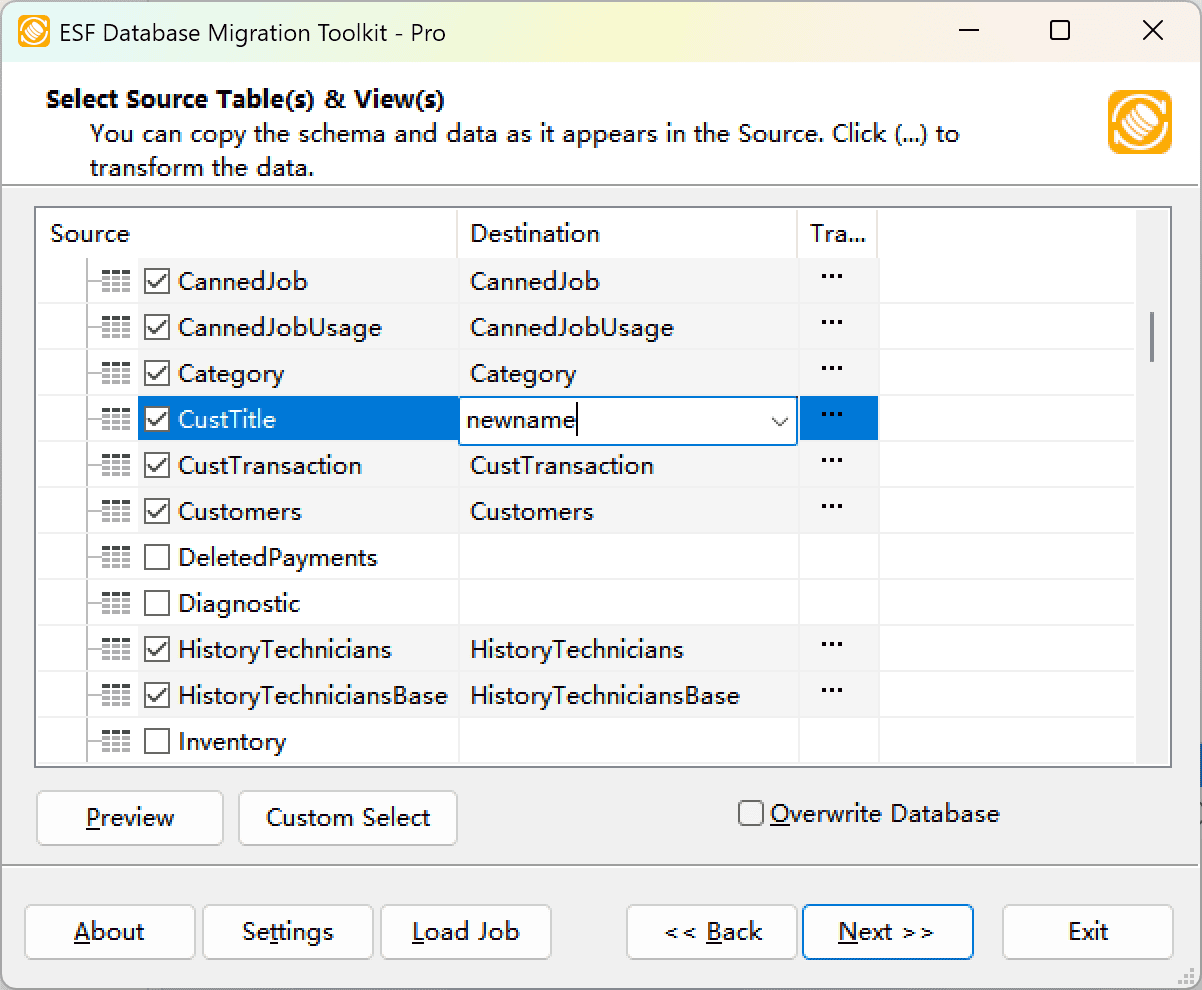
Fig. 3: Select tables and views -
Modify table structure: Click the ellipsis (...) button to access table options and schema adjustments.
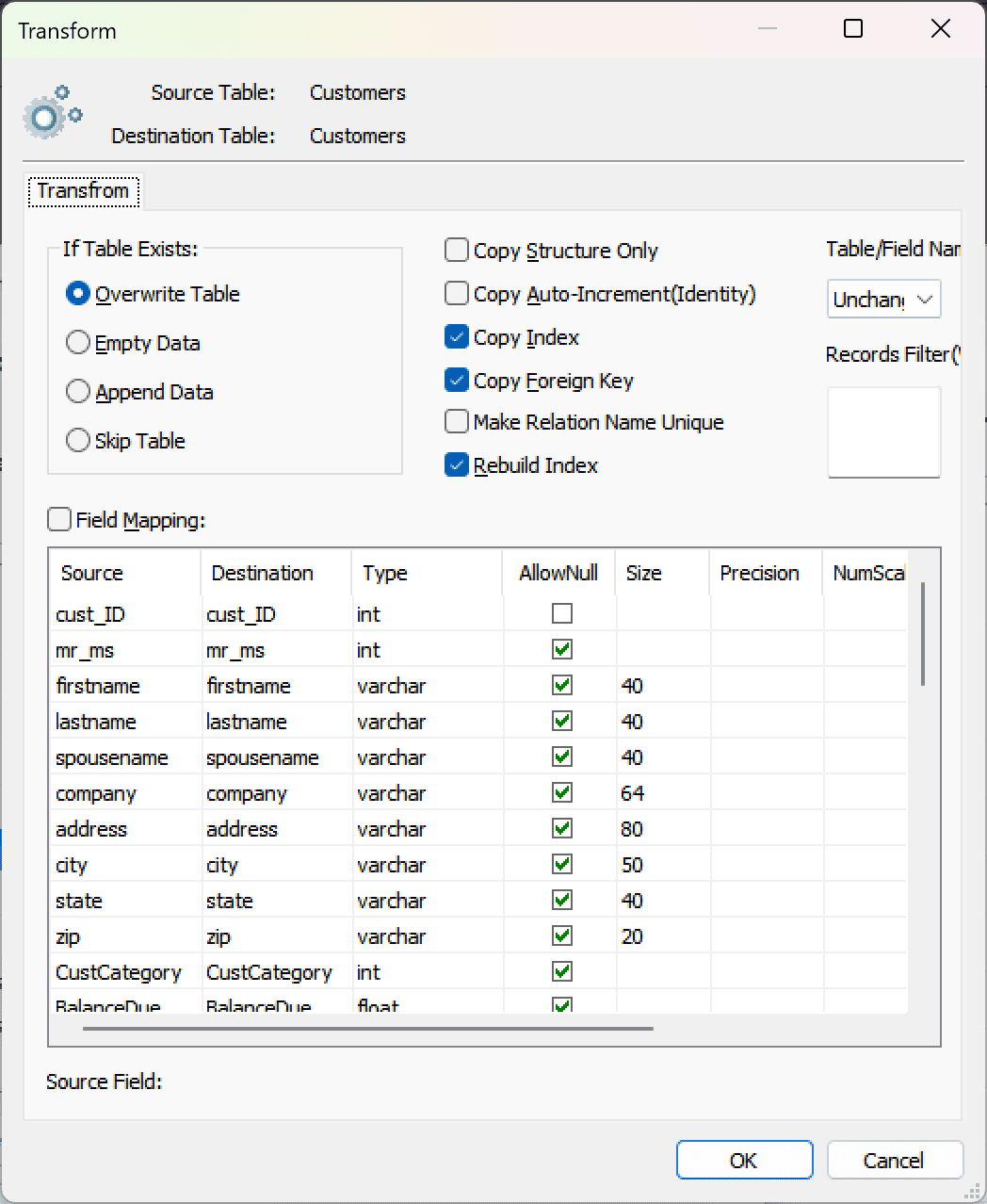
Fig. 4: Do transform -
Configure field mapping: In the Field Mapping options:
- Customize destination fields (name, data type, default value, comments)
- Select data transfer method:
- Overwrite Table (replace existing data)
- Empty Data (truncate before insert)
- Append Data (add to existing data)
- Skip Table (exclude from transfer)
- Apply data filters before transfer
-
Select migration objects: Choose tables or views to include in the migration.
-
Step 4: Execute Migration
Review your settings and start the automated data transfer process.
Execution Dialog
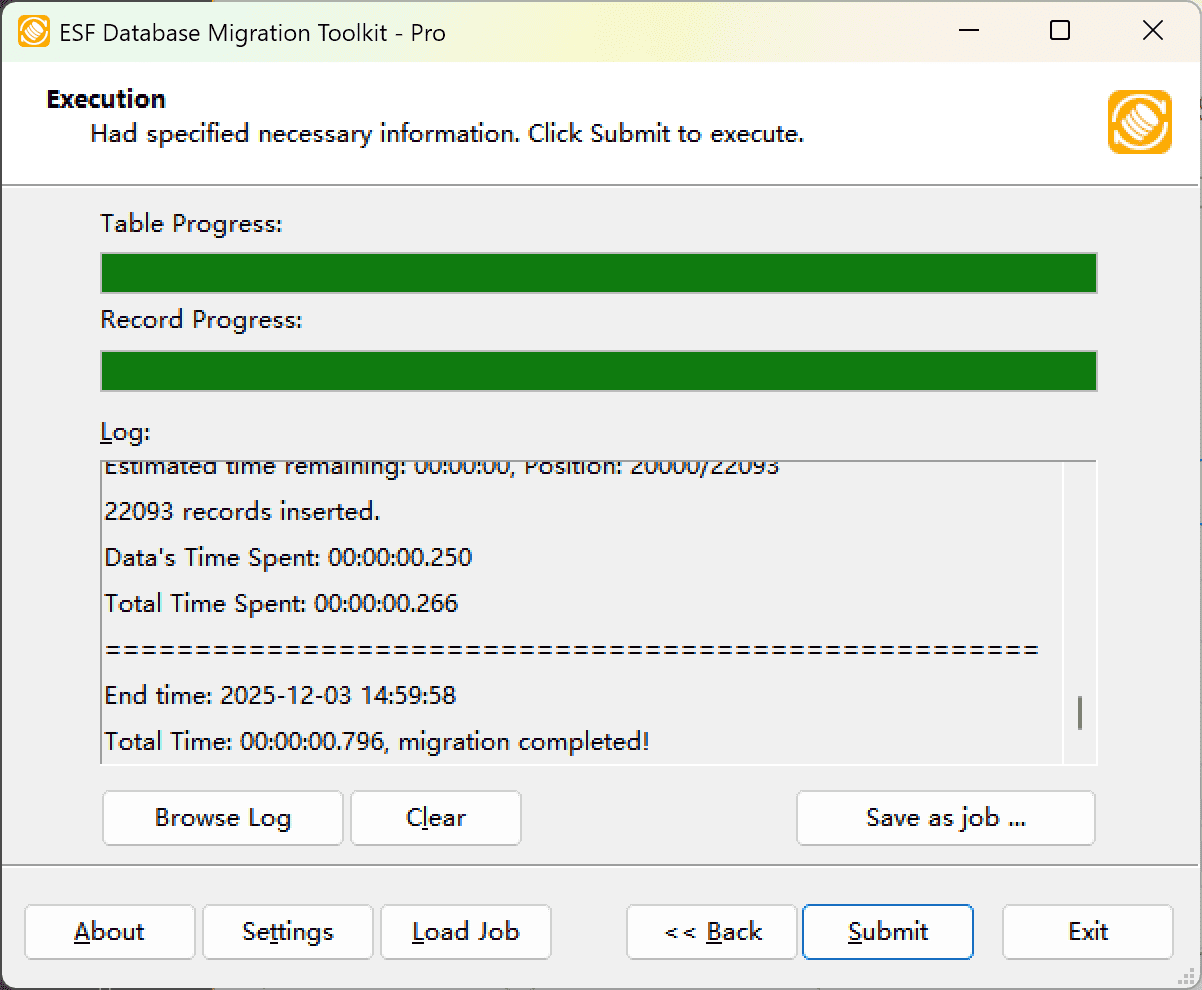
Fig. 5: Execute migration - Start migration: Click "Submit" to initiate automated data transfer from MS Access to PostgreSQL.
- Monitor progress: Click "Browse Log" for real-time migration tracking, including issue resolution details.
-
Save configuration: Click "Save as job" to store settings for:
- Quick reloads of migration jobs
- Command-line execution (use:
dmtc.exe --helpfor parameter options)
-
Step 5: Verify Results
After the migration completes, verify that all data has been transferred correctly.
Troubleshooting & Common Issues
Connection Errors
If you encounter connection issues when configuring MS Access or PostgreSQL, verify the following:
- Firewall settings — Ensure the database port is not blocked by Windows Firewall or network security policies
- Authentication — Double-check username and password; some databases require specific authentication modes
- Network access — Confirm that the database server allows remote connections from your machine
- ODBC drivers — For certain databases, ensure the appropriate ODBC driver is installed on your system
Slow Migration Performance
- Large datasets — ESF Database Migration Toolkit uses bulk-insert technology, but extremely large tables (millions of rows) may take time. Consider migrating during off-peak hours.
- Network latency — For remote database servers, network bandwidth and latency can impact transfer speed
- Index overhead — Consider migrating without indexes first, then adding them afterward for faster data insertion
Frequently Asked Questions
Does the migration preserve my existing data?
Yes. When migrating to the destination database, you can choose between overwriting existing data or appending to it. The tool does not modify your source data unless you explicitly choose to.
How long does the migration take?
Migration speed depends on data volume, network connectivity, and database performance. Thanks to the bulk-insert technology, ESF Database Migration Toolkit can migrate large datasets with millions of records efficiently. Typical throughput ranges from 10,000 to 100,000 rows per minute depending on your environment.
Can I migrate only specific tables or fields?
Yes. During the mapping step (Step 3), you can select specific tables and views to migrate, and customize field mappings. You can also apply data filters (WHERE conditions) to migrate only the rows that meet your criteria.
Does ESF Database Migration Toolkit support Unicode and different character sets?
Yes. The tool fully supports UNICODE and automatic character set conversion between different encodings (UTF-8, CP1250, LATIN, ASCII, etc.). This ensures that special characters, accented letters, and non-Latin scripts are preserved correctly during migration.
Can I schedule migrations to run automatically?
Yes. ESF Database Migration Toolkit supports command-line execution and job saving. You can save your migration configuration as a job file and run it via command line using dmtc.exe --job=yourjob.mjf. This allows you to automate migrations using Windows Task Scheduler.
What happens if the migration fails mid-way?
ESF Database Migration Toolkit provides detailed transaction logging. In case of an error, you can review the log to identify the problematic records, fix the issue, and resume the migration. The tool supports transactional integrity to prevent data corruption.
Ready to migrate from MS Access to PostgreSQL?
Start your free trial today — no credit card required.
Download Now »